Setting up your Church Directory
Follow these 4 steps to connect with your Park Hill family and control what information you share
Check your email
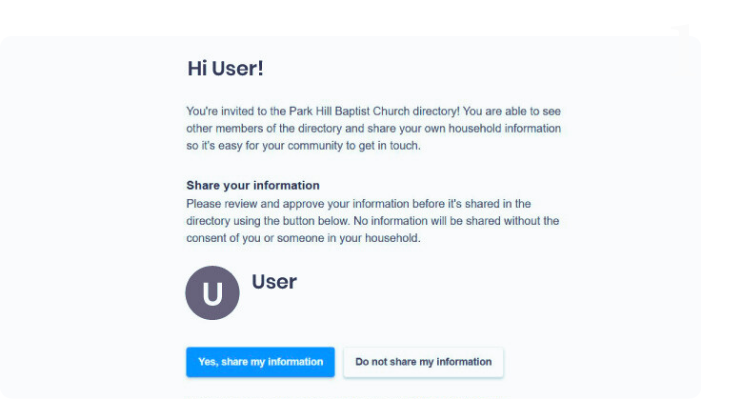
You will receive an email from Park Hill. Open it and click the link inside. You will be asked to choose one of the following:
Yes, share my information - Your profile will be visible to other Park Hill members.
Do not share my information - Your profile will remain private
Let me choose what to share - You decide what is visible and what stays private.
Open your profile in the app
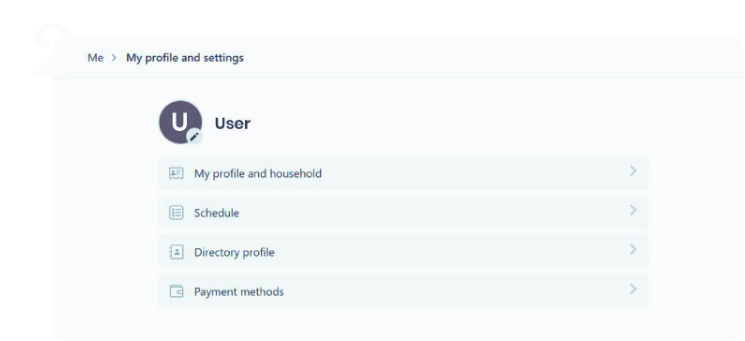
After clicking the link in the email, the app will open and show your photo and your upcoming schedule. From there:
Tap my profile and settings - You will find this button just bellow your name and the main screen.
Tap Directory profile - This will take you to the page where you can control what information is shared.
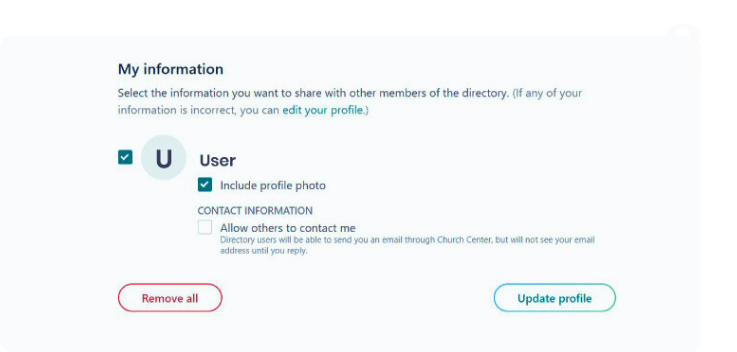
Review and choose what to share
You will now see all the information that can appear in the Directory. You are in control of every detail
Need to update something?
Tap “Edit Your Profile” to make any changes to your name, phone, or address.
Ready to share?
Simply check the box next to each piece of information you are comfortable sharing. Leave it unchecked to keep it private.
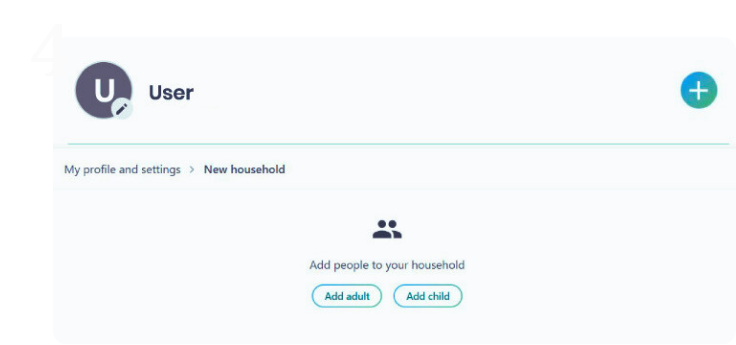
Update your household (optional)
If you are part of a household with other family members, you can manage their directory information here as well.
Select each family member - You will see a list of everyone in your household. Tap their name to review and choose what is shared for them.
Each person is in control - You can set different privacy choices for each member of your household.